This guide walks you through adding a new participant and connecting their Fitbit device to your Fitabase project. You will create an account, pair the device, and verify that data is flowing correctly.
1Create a Participant Account
Log in to your Fitabase dashboard and navigate to Participants > Add New Participant. Fill in the required fields and click Save.
Tip:
Use a consistent naming convention for participant IDs across your study. This makes it much easier to match records during data export.
Connect the Fitbit Device
From the participant's profile page, click Connect Device and follow the on-screen prompts to pair the Fitbit via Bluetooth.
Important:
We highly encourage using the de-identified method when creating Fitbit accounts for participants. This protects participant privacy and simplifies your IRB approval process.
See Creating Google Accounts for New Participants for detailed instructions.
Verify the Initial Sync
Once the device is paired, open the Fitbit app on the participant's phone and wait for the first sync to complete. You should see data appear on the Fitabase dashboard within a few minutes.
Warning:
Do not close the Fitbit app during the initial sync. Interrupting the first sync can cause a delay of up to 24 hours before data appears in Fitabase.
Set the Data Collection Window
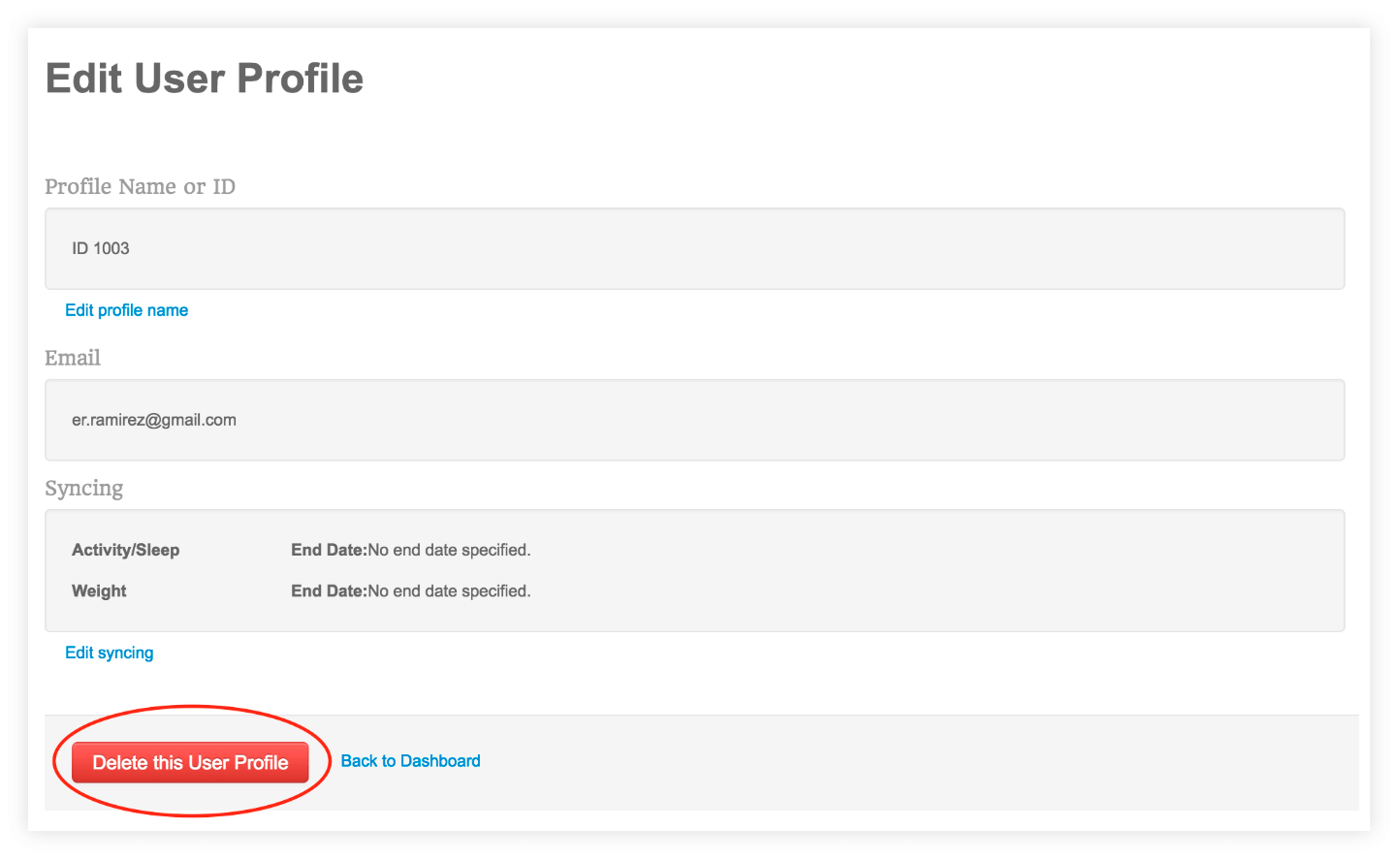
Navigate to Project Settings > Data Collection and configure the start and end dates for this participant. Fitabase will only collect and store data within this window.
Note:
The data collection window can be adjusted at any time, but Fitabase cannot retrieve historical data from before the participant's Fitbit account was connected.
Configure Sync Reminders
If your study protocol requires regular syncing, you can set up automated reminders under Engage > Reminders. Choose a schedule that aligns with your data collection needs.
Remember:
Fitbit devices should sync at least once every 5 days to avoid data loss. Older data on the device may be overwritten if not synced in time.
Confirm Everything is Working
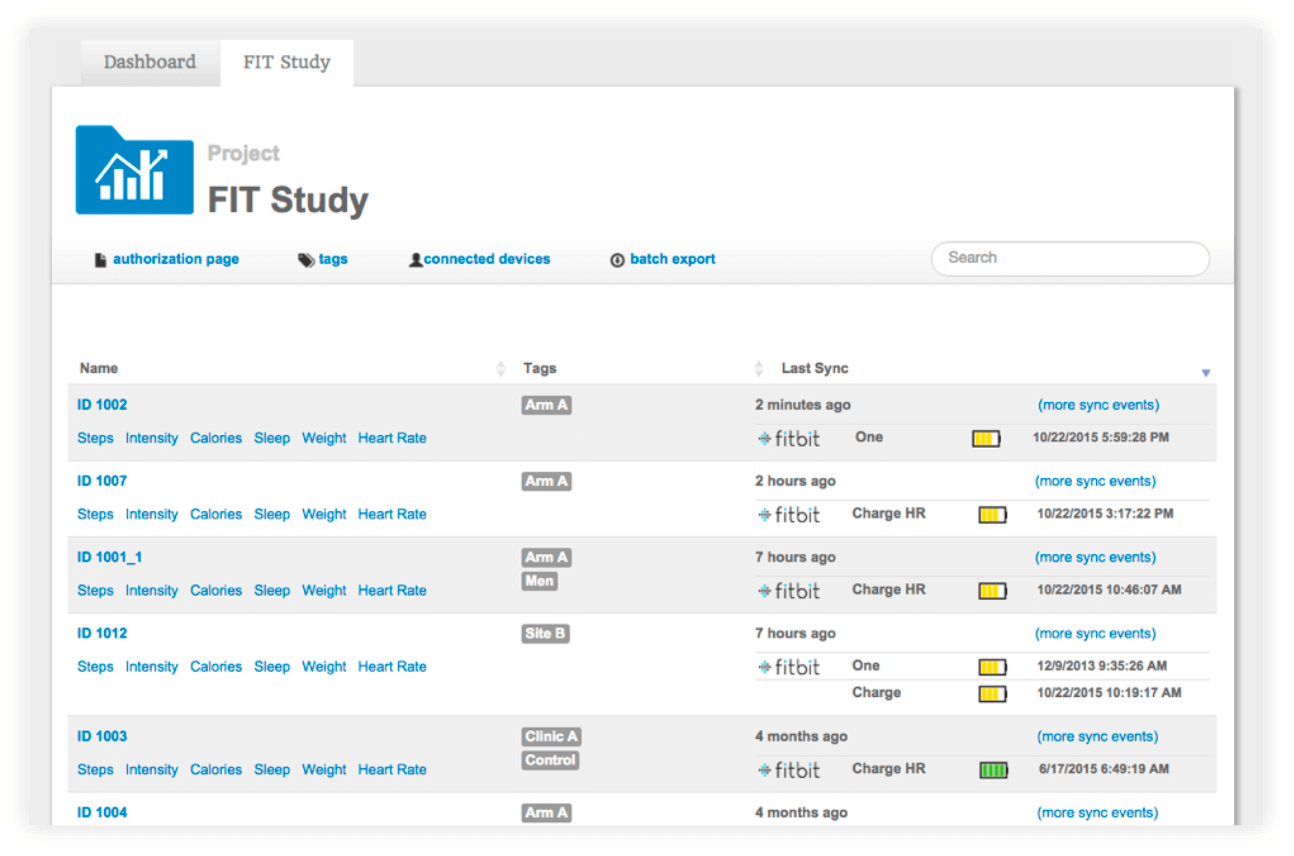
Return to the participant's profile and check the Last Synced timestamp. You should also see heart rate or step data populating in the dashboard graphs.
Warning: Double-check the timezone!
Fitabase uses the timezone set in the participant's Fitbit account. If this doesn't match your study location, timestamps on the exported data will be offset.
Go to Fitbit.com > Settings > Personal Info to verify the timezone is correct before data collection begins.
Your participant is now set up and collecting data. Repeat these steps for each additional participant in your study.