General syncing information
Garmin devices must sync with their associated Garmin Connect account in order to make data available through Fitabase.
The Garmin Connect mobile app is available for iOS and Android devices and communicates with the Garmin device via Bluetooth Low Energy (BLE). It is important that the mobile device keep bluetooth turned on during data collection periods.
On some Garmin devices, automatic syncing settings can be changed in the Garmin Connect app. From the app menu, select "Garmin Devices" and then "Device Settings." Select "System." Under "Auto Sync," you can set devices to sync automatically on a limited, occasional or frequent basis.
Please note that the more frequently syncing occurs, the more impact it will have on battery life of the device. We suggest at least turning on Limited autosyncing to avoid potential loss of high-resolution data over time.
Important: Gathering historical data
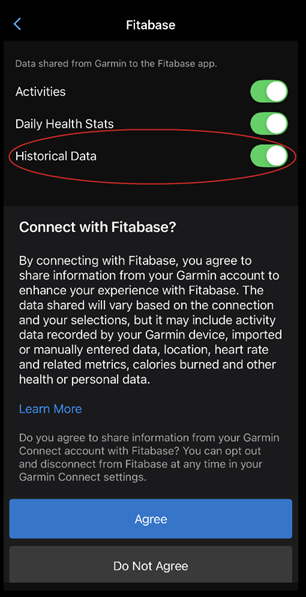
Fitabase can pull historical data from a participant if you set sync dates to a window in the past. However, this option is turned off by default on Garmin Connect, and participants must explicitly opt into allowing Fitabase to pull this historical data.
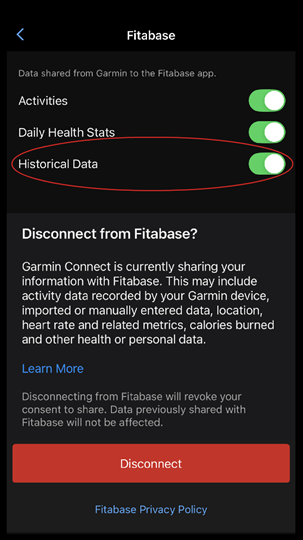
Participants can do this when going through the authorization flow to connect their Garmin account to Fitabase by toggling the "Historical Data" option to on when they grant permission to Activities and Daily Health Stats.
If they have already connected their account to Fitabase, they can still grant permission for historical data capture by tapping "More" on the bottom navigation in the Garmin Connect app, then tapping Settings > Connected Apps > Fitabase and toggling "Historical Data" on.