Reauthorization is almost the same process participants went through when they first connected to Fitabase. Participants can do it in one of two ways, and they only need to do it once. After reauthorizing in either place, they're done.
Note:
Reauthorization isn't available yet. We'll email you and post a notice in the Fitabase platform as soon as it is. See Key Dates.
Option 1: The banner in the Google Health app
This is likely to be the easiest option for most participants. Google is adding a banner to the Google Health app on Android and iPhone. It lets participants know they've been sharing data with Fitabase and asks them to continue. The participant opens the app, taps the banner, and follows the prompts to allow access.
Ask your participants to look out for this banner. Our sample participant message covers it.
Note:
We'll add the exact wording of the banner and a screenshot here once Google makes it available.
Option 2: A reauthorization link from Fitabase
You can also send each participant a reauthorization link from the Fitabase platform. They open the link and follow the steps in the walkthrough below.
Finding who needs to reauthorize
- A banner at the top of your project shows how many participants still need to reauthorize, with a View button that takes you straight to them.
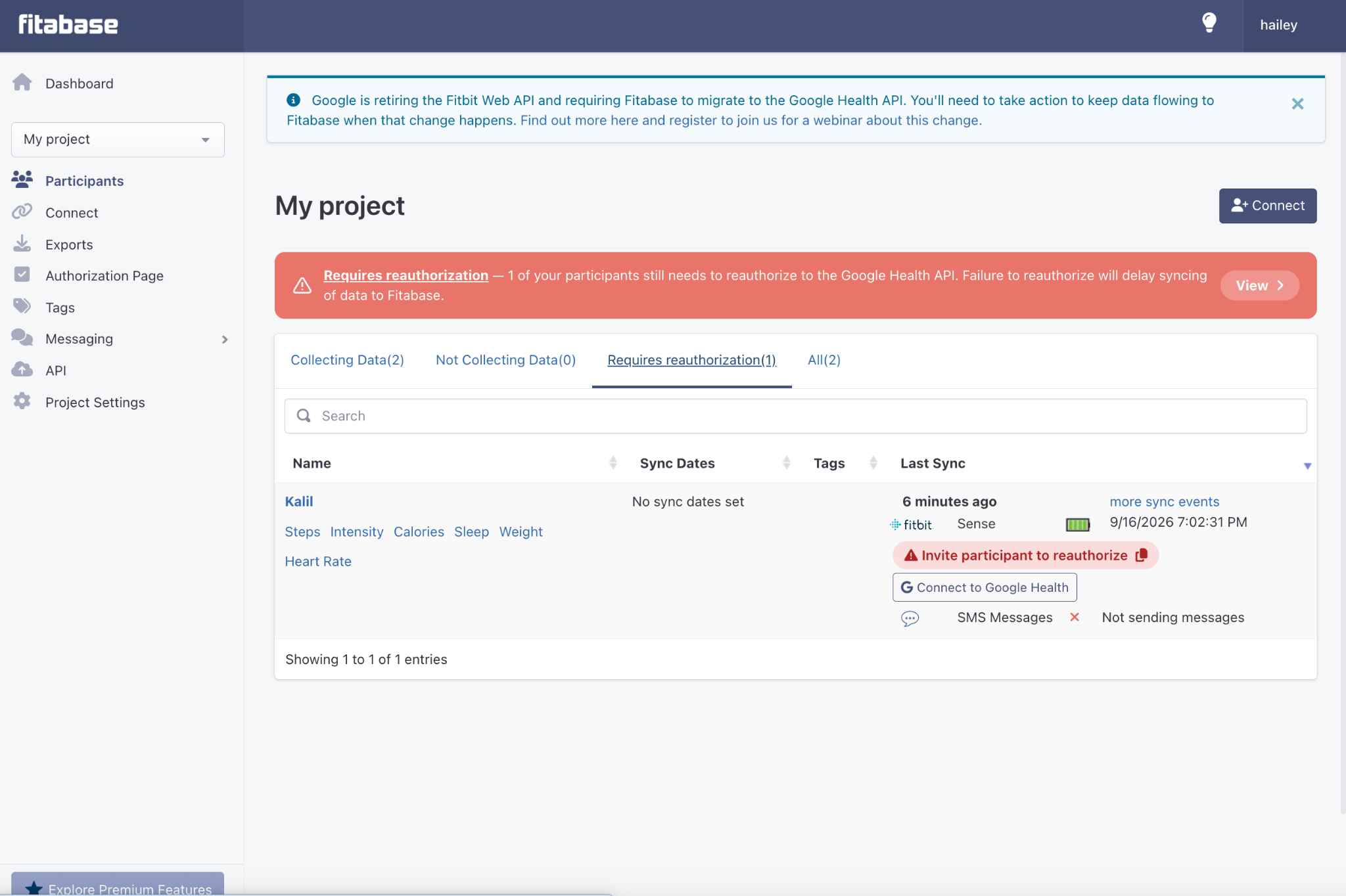
- Each participant row that still needs action shows Invite participant to reauthorize, along with a Connect to Google Health button.
- Participants who have finished show a green Connected to Google Health status.
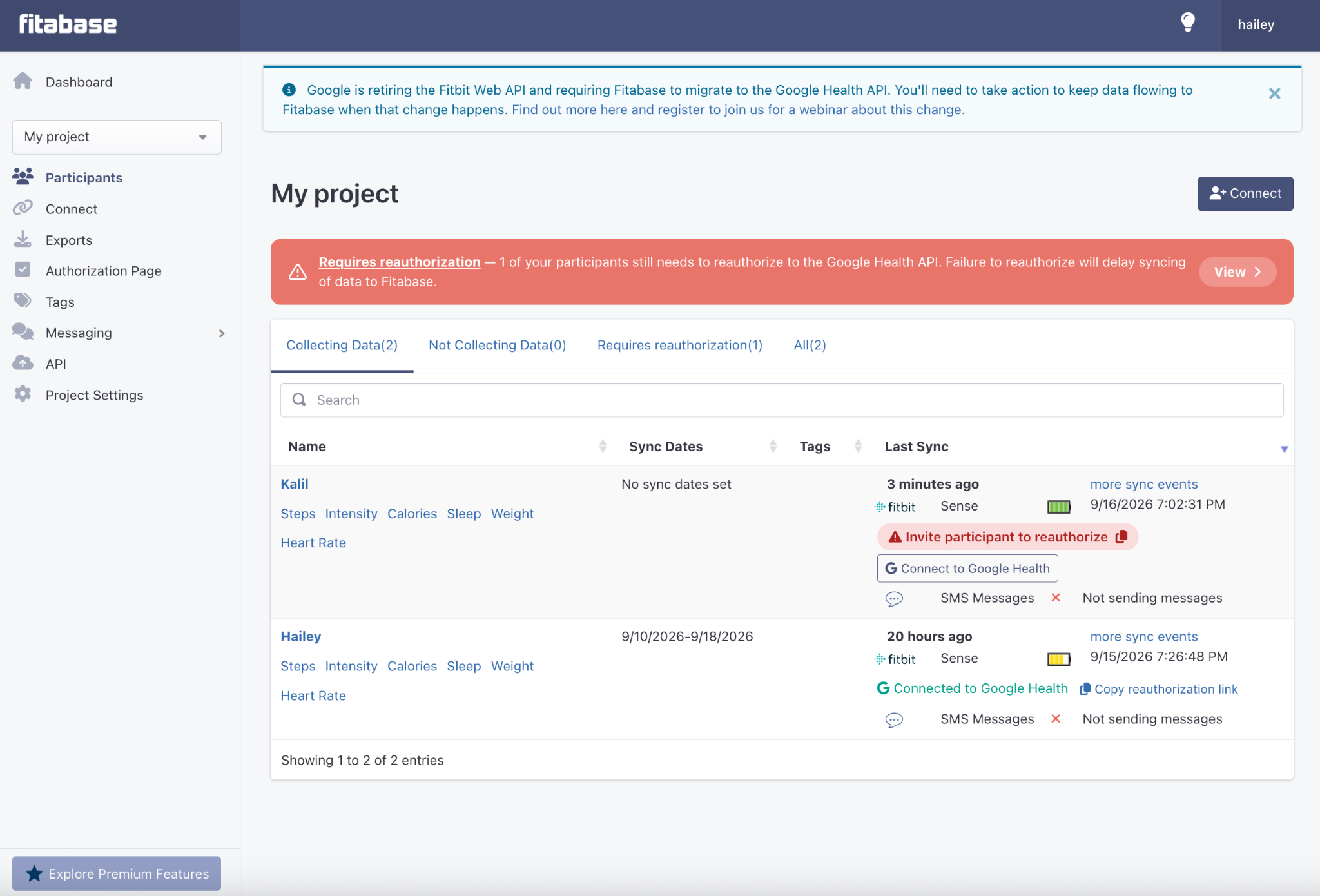
- The Requires reauthorization tab on your Participants page lists only the participants who still need to reauthorize.
Tip:
Check the Requires reauthorization tab regularly and follow up directly with anyone still on the list.
Walkthrough: start to finish
1Send the participant their reauthorization link
On the participant's row, click Invite participant to reauthorize to copy their unique link, and send it to them however you usually contact participants. If you're working with the participant in person, you can click Connect to Google Health instead.
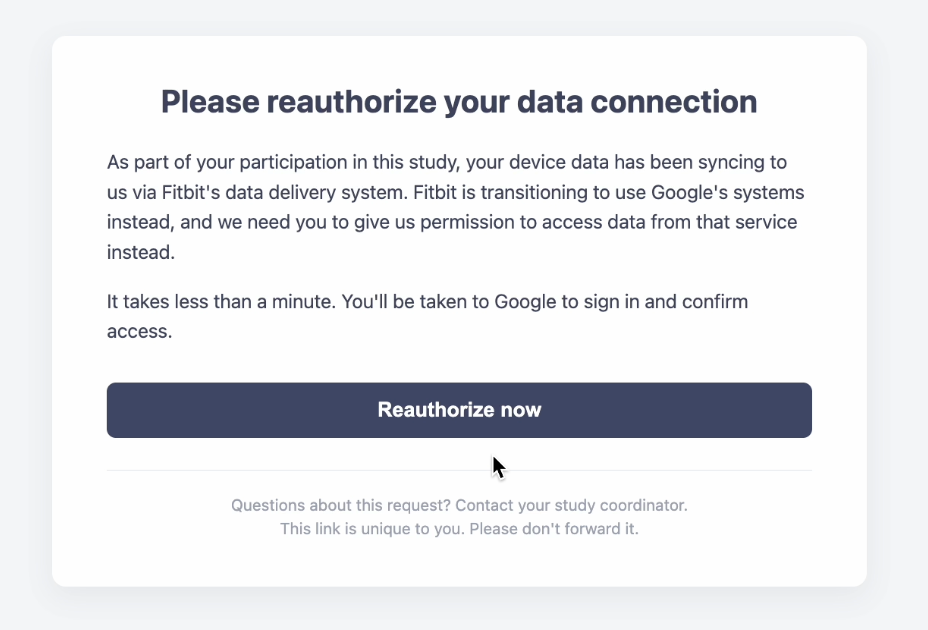
2The participant clicks Reauthorize now
The link opens a Fitabase page that explains the change. The participant clicks Reauthorize now and is taken to Google to sign in.
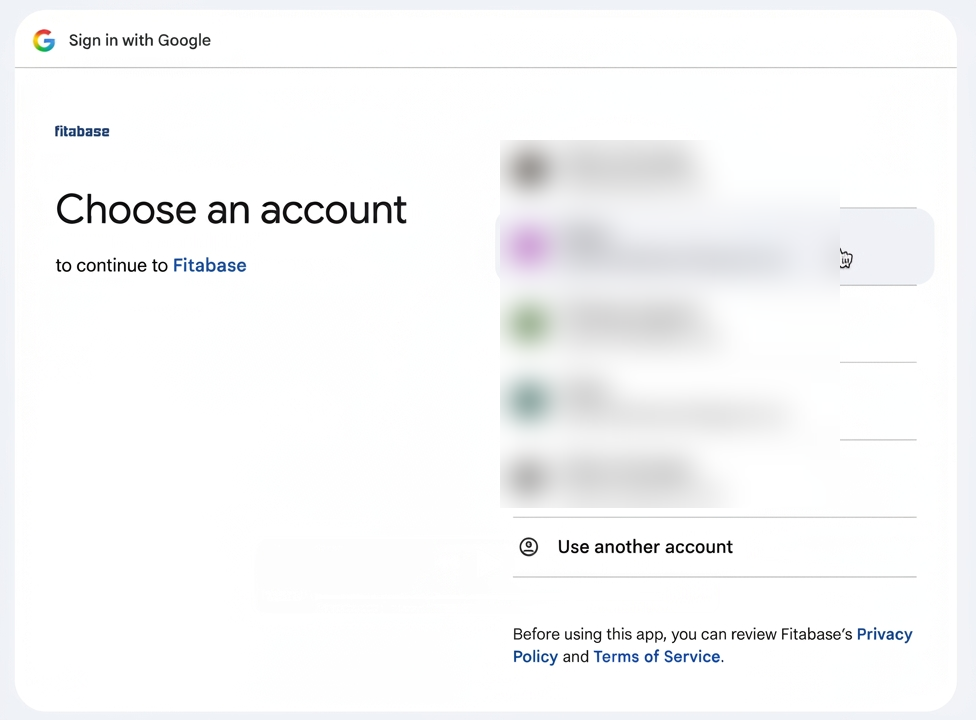
The participant chooses their Google account
The participant selects the Google account that's connected to their device. Make sure they choose the same account they use with their device.
The participant selects all permissions
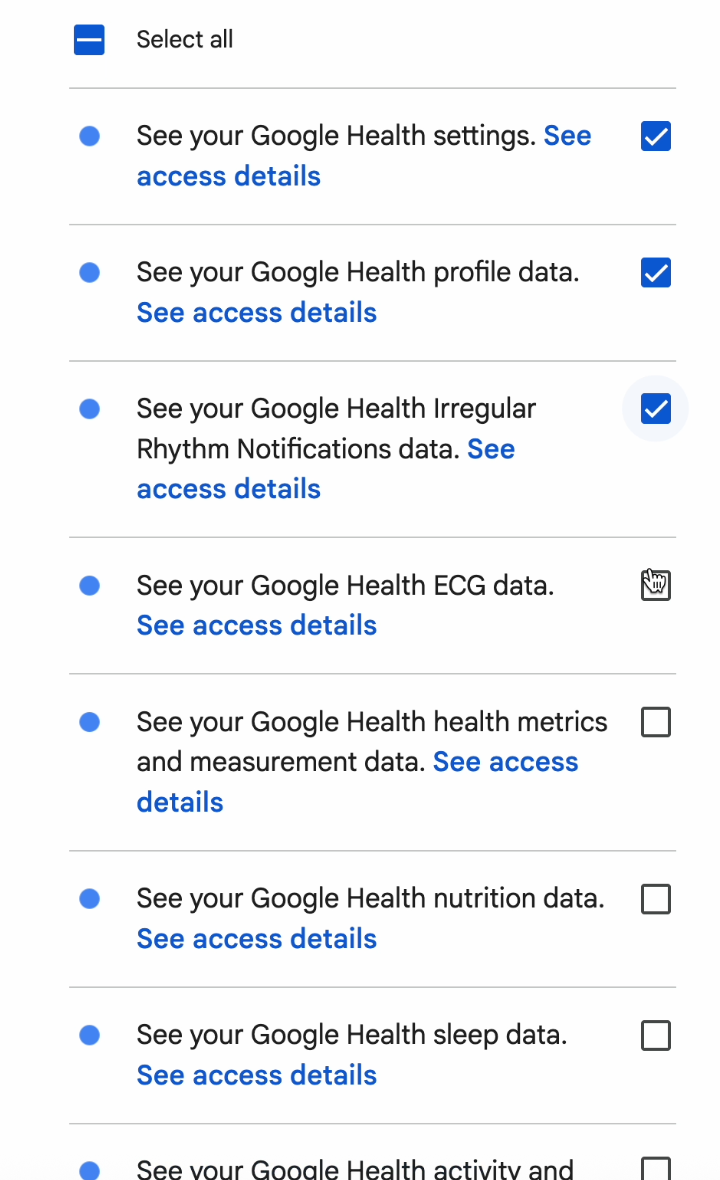
The participant sees the list of data Fitabase is asking to access. The Google Health API organizes and names these permissions (scopes) a little differently than before, but the data is the same. The participant should check Select all and then click Continue at the bottom.
Important:
Ask participants to select all permissions. Any permission they leave unchecked means that data won't sync to Fitabase.
Done
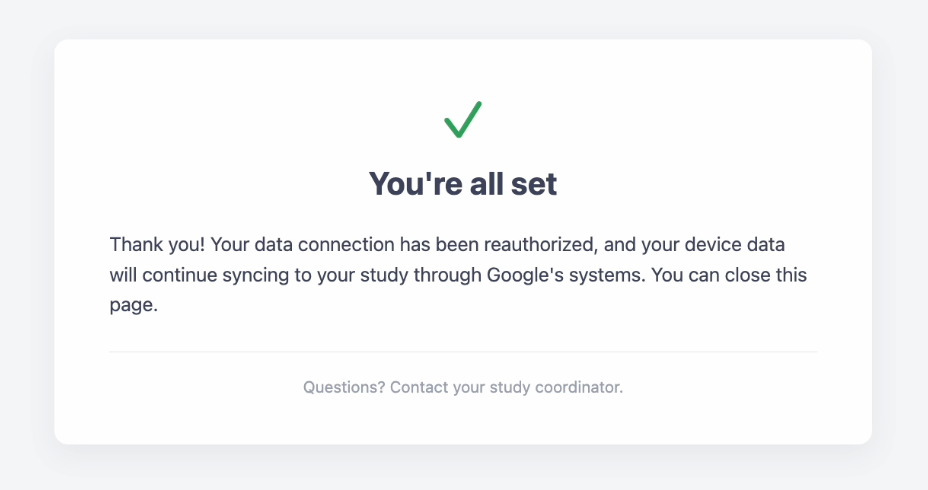
The participant sees a You're all set confirmation and can close the page. In Fitabase, their row now shows a green Connected to Google Health status, and they drop off the Requires reauthorization tab.
Frequently asked
Does a participant need to reauthorize in both the Google Health app and through Fitabase? No. Once they reauthorize in either place, you'll see it on your Fitabase dashboard.
Can we reauthorize participants programmatically or in bulk? No. Each account has to go through the Google sign-in and permission screens. For accounts your team manages, see Reauthorizing Demo and Test Accounts.