Many studies use demo or test accounts, such as the research accounts Google makes available to study teams, or accounts the study team creates and manages for participants. These accounts need to be reauthorized just like any other participant account. Because your team holds the credentials, you can reauthorize them yourself without involving the participant.
Tip: Try it on your own account first
Before you ask participants to reauthorize, run through the process on one of your own test accounts. That way you'll know exactly what participants will see.
Open the Requires reauthorization tab
On your project's Participants page, open the Requires reauthorization tab. It lists every account that still needs to reauthorize.
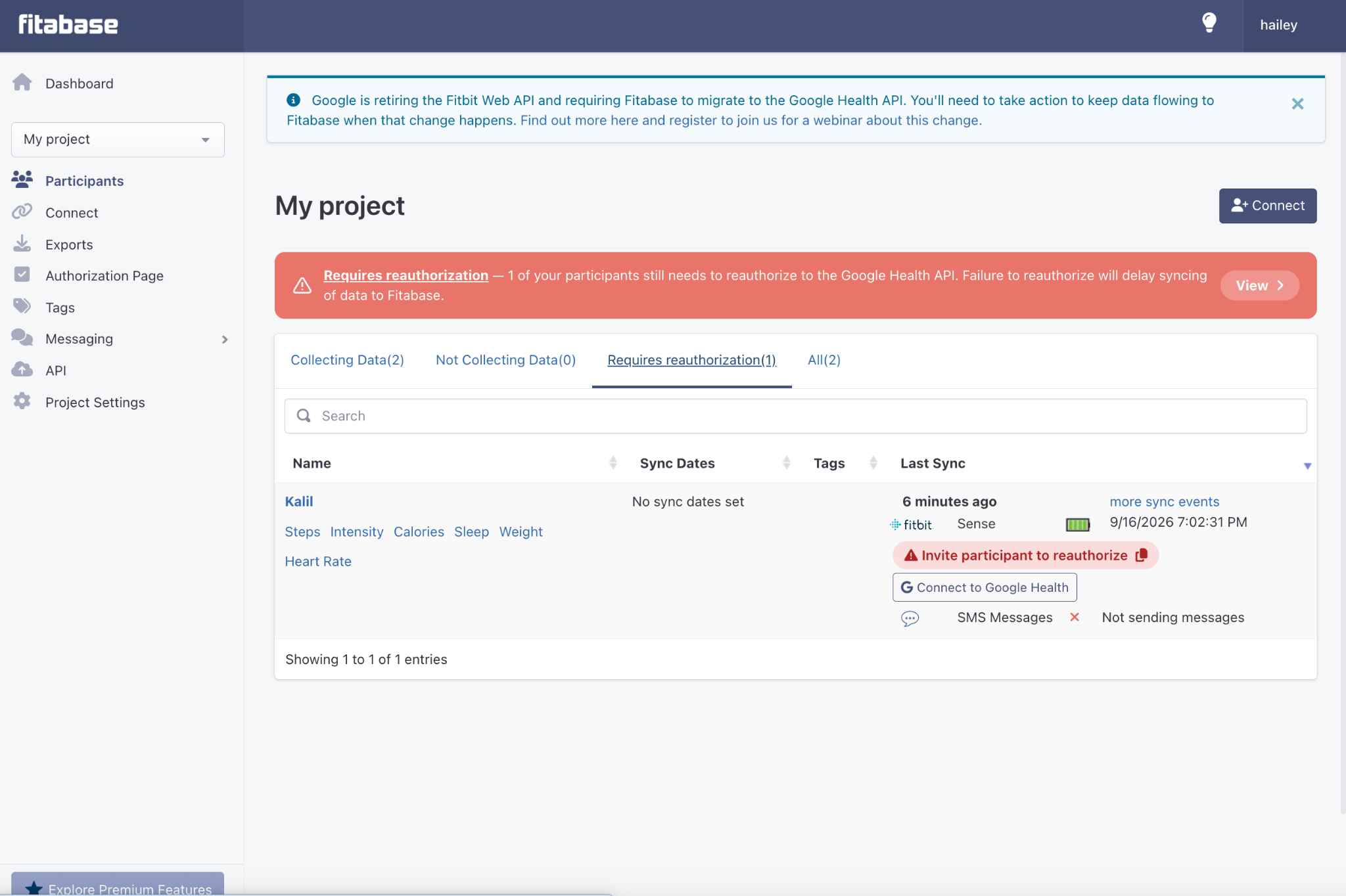
Reauthorize each account
For each account, click Connect to Google Health. Then sign in with that account's Google credentials, select all permissions, and finish. See the full walkthrough for screenshots of each screen.
3Confirm everyone is connected
Each completed account shows a green Connected to Google Health status and drops off the Requires reauthorization tab. When the tab is empty, you're done.
Important: Only reauthorize accounts your study controls
Reauthorize on a participant's behalf only when your study set up and manages that account and your consent process covers it. If the account belongs to the participant, they should reauthorize it themselves.